Voxel Size & Preview Detail
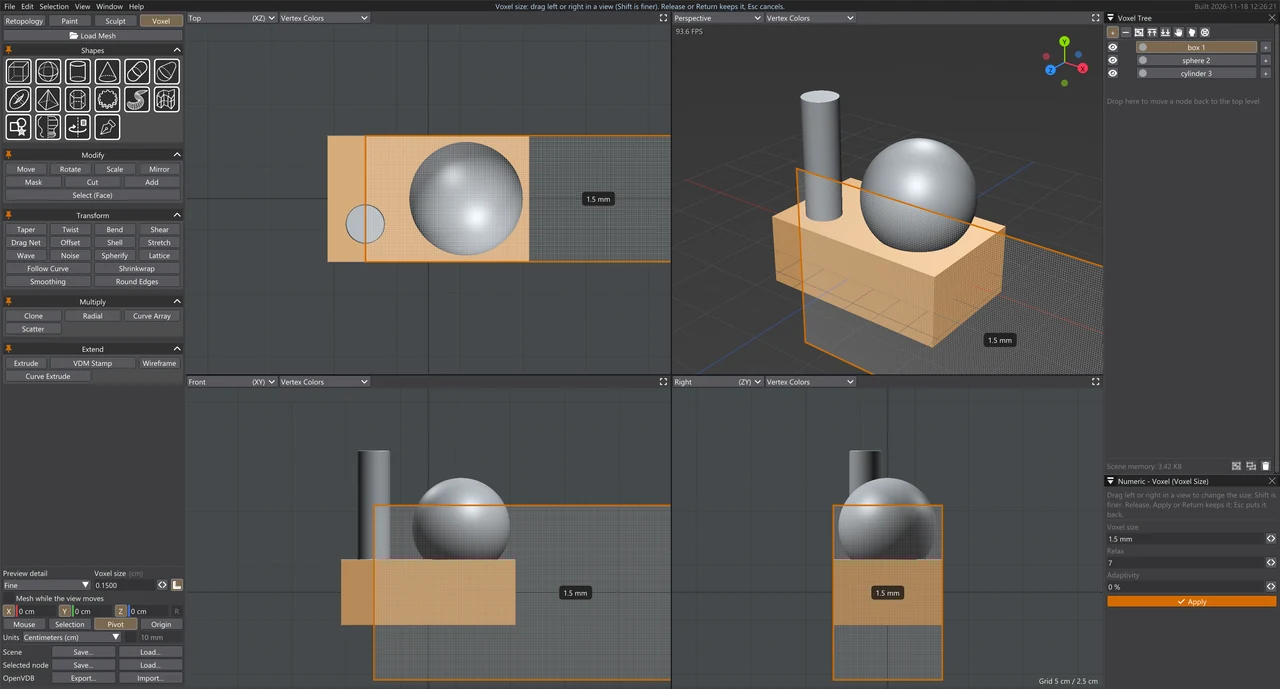
Two settings decide how detailed a voxel scene is, and they are deliberately separate. Voxel size is the scene's real resolution: what a bake samples at, and how fine the mesh is when shapes are sent to an empty sculpt. Preview detail only decides how closely the views approximate the shapes while you work. Both sit side by side at the bottom of the Voxel palette, Preview detail on the left and Voxel size on the right.
Voxel size
The voxel size is how finely shapes are sampled when they are baked — by Flatten, a Free Form outline or a mesh sent back with Send to Voxel — and, in practice, the smallest detail they can hold. The first Send to Sculpt into an empty sculpt meshes at it too (no finer than 200 cells across the shapes); once the sculpt holds meshes, a send matches their detail instead. It is a real length, shown in the unit chosen in the palette's Units dropdown, so “half a millimetre” means the same thing whatever size your model is.
Smaller is finer but not free: halving the voxel size multiplies the work by eight. Block out at a coarse size and only go finer when the form needs it.
There are three ways to change it:
- Drag the field in the palette left or right.
- The ruler button beside the field, or R by default (Voxel: Edit Voxel Size in the keyboard settings), shows the voxel size on the model. Drag left or right in a view to change it; hold Shift for finer steps. Releasing the mouse, Apply or Return keeps the new size; Esc or Ctrl+Z puts the old one back.
- The Numeric window: while the voxel size tool is on, it shows a Voxel size field you can type into, and an Apply button.
The Numeric window also holds two settings for the meshes Send to Sculpt makes:
| Control | What it does | Default |
|---|---|---|
| Relax | How many times the mesh's quads are evened out, staying on the surface and keeping sharp edges. 0 to 8; 0 is off. | 0 |
| Adaptivity | Lets the mesh use fewer, larger polygons where it is flat. 0% keeps every voxel's quad; 100% lets the surface move up to half a voxel to save polygons. Some triangles are left where quads will not fit. | 0% |
Each document keeps its own voxel size. A new voxel document starts at the Default voxel size set under Settings > Settings > Voxels, which is 5 mm unless you change it.
Voxel size and memory
The voxel size also sets the resolution of anything that is baked into samples. When you apply a Free Form outline, for example, it is turned into a grid taken from the scene's voxel size, and the Numeric window shows what that will cost before you click — the sample count, the megabytes and the cell size. A finer voxel size gives a cleaner edge and a bigger object.
To see what the whole scene holds, look at the foot of the Voxel Tree window: Scene memory: shows the total. Flattened shapes are nearly all of it; hover a row in the tree to see each one's share.
The real limit on how fine shapes can be meshed is the Create Mesh memory budget (MB) under Memory Settings. When a mesh would be too fine for the budget, it is refused with a message naming the size that would fit; raising the budget lets a finer size through at the cost of that much memory while it runs.
Preview detail
Preview detail sets how finely the live preview in the views is meshed. It has three settings: Draft, Normal (the default) and Fine. It has no effect on bakes or on the meshes Send to Sculpt makes.
The cost is cubic: Fine is roughly eight times the work of Normal. If you want a sharper picture while you work, this is the setting to raise — turning the voxel size down instead would make every bake slower too. Drop to Draft if the views struggle to keep up on a large scene.
Mesh while the view moves
Mesh while the view moves, just below the two fields, is on by default. While you orbit or pan a view, that view shows the meshed preview instead of the exact one: the exact preview has to be redrawn every frame the camera moves, and the mesh is several times cheaper. Only the view you are moving is affected — the others keep their exact image — and the exact preview comes back as soon as you stop. Turn it off if you would rather see the exact preview at all times and your machine can keep up.
Smallest voxel size by edition
Each edition has a smallest voxel size it can block out at. The field will not go below it, and its tooltip states your edition's limit.
| Edition | Smallest voxel size |
|---|---|
| Free | 5 mm |
| Light | 2 mm |
| Regular | 0.5 mm |
| Ultra | No limit |
The limit also applies to scenes made in a higher edition: when such a scene is opened, or its shapes are baked or sent, a voxel size below your edition's limit is raised to it.