Saving & Loading Scenes
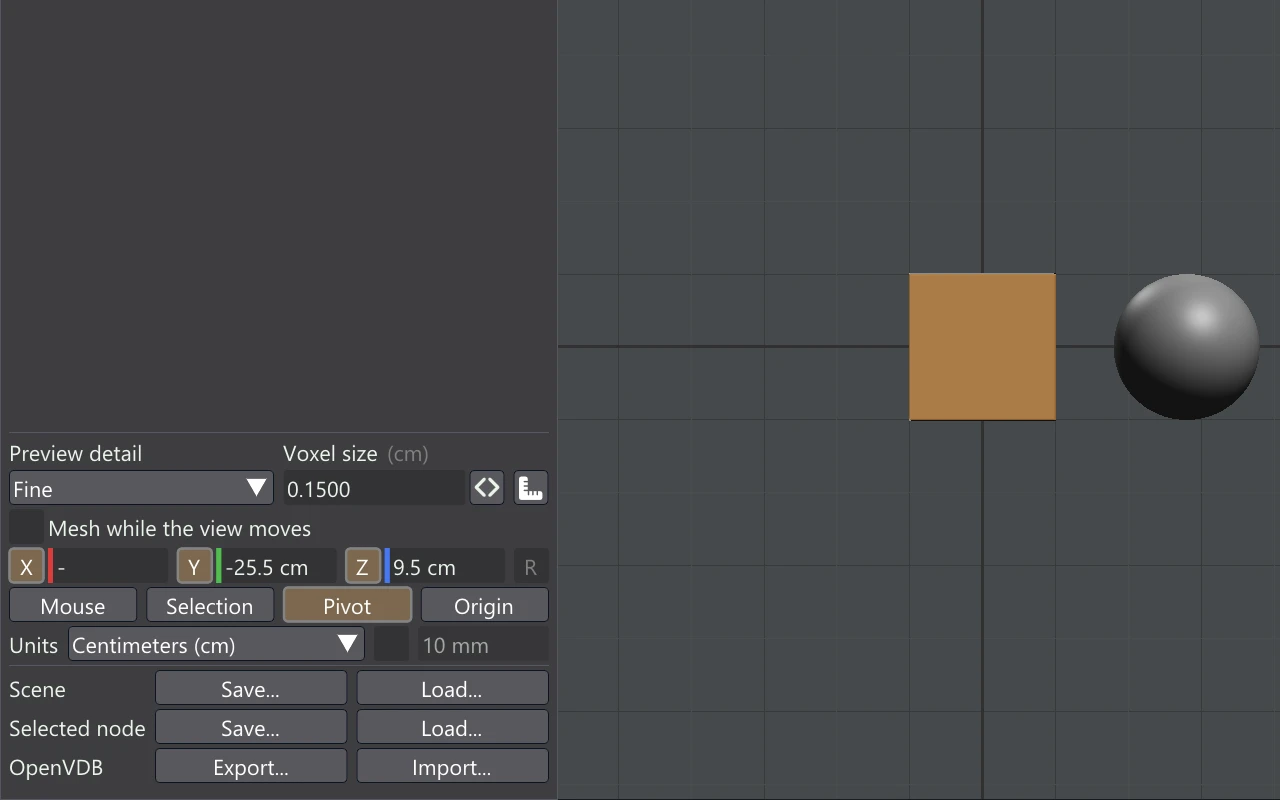
Voxel shapes are saved in their own files, separate from meshes and projects. There are two kinds: a .vxv scene holds everything in the Voxel tab, and a .vxo object holds one node and everything under it, ready to drop into another scene. Both have a row of buttons near the bottom of the Voxel palette, labelled Scene and Selected node. A third row, OpenVDB, exchanges shapes with Blender, Houdini and other volume tools as .vdb files.
Saving and loading a scene (.vxv)
A scene file keeps the scene exactly as it is, so you can come back to it later and carry on editing: every shape and group, with all their settings, the voxel mask, and the Voxel size. A reopened scene comes back at the voxel size it was saved with, because the same shapes at a different size give a different surface. If that size is finer than your edition allows, it opens at the finest size your edition does allow.
| Control | What it does |
|---|---|
| Save... (Scene row) | Saves the whole scene to a .vxv file. Greyed out with Nothing to save yet. until the scene has at least one node. The file name defaults to the scene's current file, if it has one. |
| Load... (Scene row) | Opens a .vxv file. It replaces the current scene. |
Opening a scene starts a new voxel undo history: you cannot undo back to the scene you had before. Save that one first if you want to keep it. If a file cannot be read, the current scene is left untouched and the status bar says why.
Saving and adding one object (.vxo)
A .vxo file is one part rather than a whole layout: a node from the tree, everything under it, and the materials it uses. Use it to build a library of parts you reuse, such as a handle, a bolt or a base, and bring them into any scene.
| Control | What it does |
|---|---|
| Save... (Selected node row) | Saves the selected node and everything under it to a .vxo file. The file name defaults to the node's name. Greyed out until you select a node, and for an empty group, because there would be nothing in the file. |
| Load... (Selected node row) | Adds a .vxo object to the current scene, alongside what is already there. |
An added object lands at the origin with its rotation reset, as a new top-level node, and it is selected so you can move it straight away. If the scene already has a node with the same name, the new one gets a number after its name, such as (2). Its materials join the scene's. When the scene already has a material of the same name, the scene's colour is kept.
Exchanging shapes with other tools (.vdb)
OpenVDB is the volume format that Blender, Houdini and most effects tools read and write. Vertexix writes your shapes to it as a distance field (a level set): every voxel near the surface stores how far it is from the surface, so the other tool sees the same smooth form, not a block of cubes. Import... works in every edition; Export... is in Vertexix and Vertexix Ultra.
| Control | What it does |
|---|---|
| Export... (OpenVDB row) | Writes the objects you have selected, each with everything under it, to a .vdb file as one distance field. With nothing selected it writes the whole visible scene. The shapes are sampled exactly as Flatten would sample them, at a quarter of the Voxel size. A turned object is written turned, so it sits in the other tool exactly where it is here. Greyed out until the scene has a node. |
| Import... (OpenVDB row) | Adds every distance or density grid in a .vdb file to the scene, each as a flattened object named after the file, at the place the file puts it. Density grids, such as smoke or a Blender Mesh to Volume, are read at density 0.5. Grids that hold no surface, such as velocities, are skipped, and the status bar names them. |
Both run in the background, so you can keep working while a large file is read or written. One Ctrl+Z takes an import back out. A very large grid, such as a simulation cache, is read at two or more times its own voxel size, and the status bar says so. Raise Flatten detail (million samples) in the Settings window to bring in more of its detail.
In Blender, open a .vdb with File > Import > OpenVDB, then add a Volume to Mesh modifier to a mesh object to see the surface as a mesh.
Opening scenes from the File menu or by dropping
- File > Recent Voxel Scenes lists the scenes you have saved or opened, separate from the Recent list of models. Hover an entry to see its full path. Picking one switches to the Voxel tab and opens it.
- Drag a .vxv or .vxo file onto the Vertexix window. Vertexix switches to the Voxel tab. A .vxv replaces the scene and a .vxo is added to it, exactly as with the palette's buttons.
- File > Load... opens them too, if you set the file dialog's file type to All files. Like any Load... from the File menu, it first clears the current model, and asks before it does if one is loaded.
Scene and object files hold the voxel scene, not the Loaded Mesh built from it. To keep that mesh, save a project with File > Save Project..., or export it.