Keyboard Setting Tab
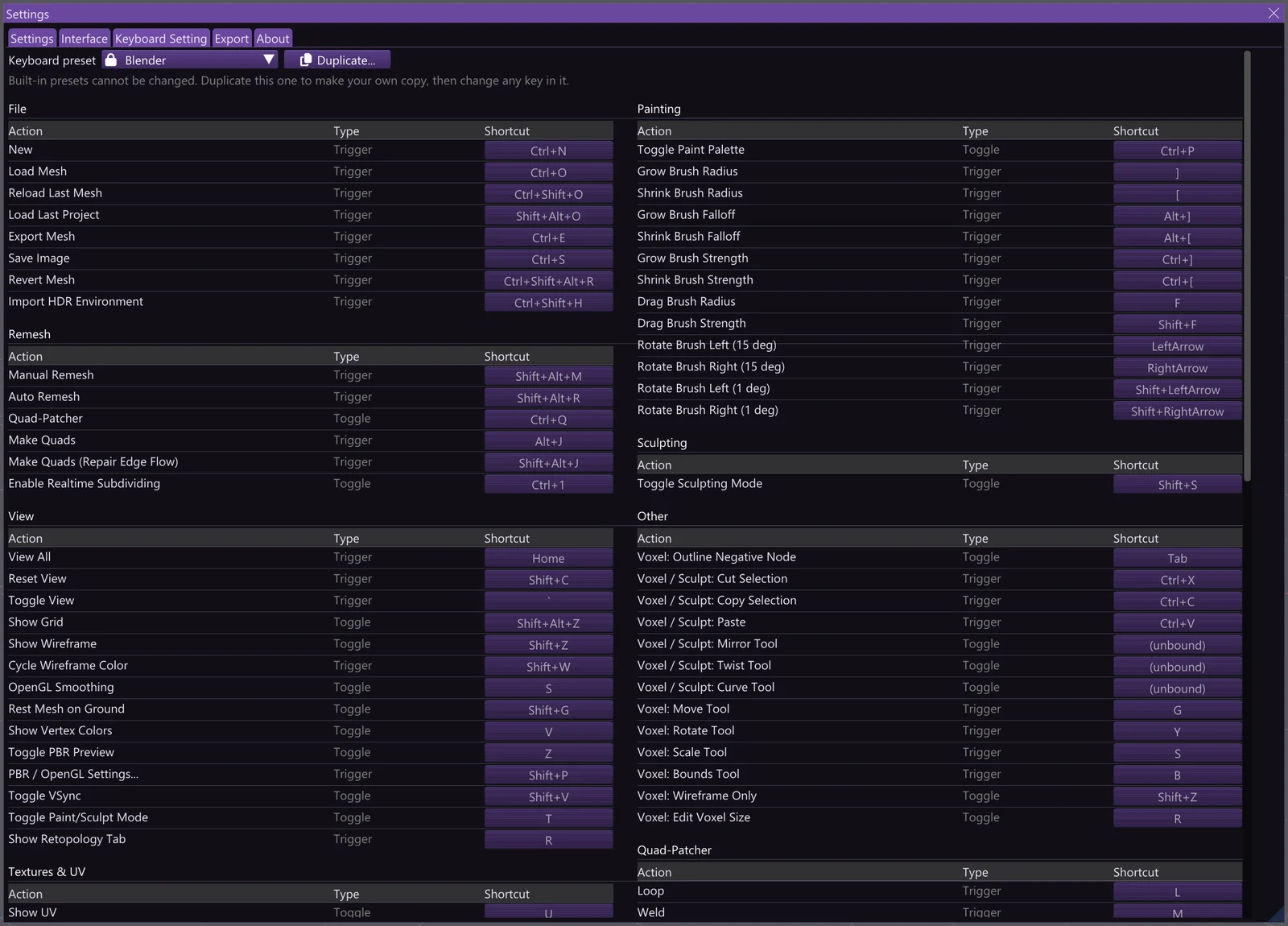
Every shortcut in Vertexix is listed here in two side-by-side columns, grouped exactly the way the in-app "?" shortcuts reference groups them: File, Remesh, View, Textures & UV, Selection, Painting, plus an automatic Other catch-all for anything not yet assigned a group. Which keys they have comes from the keyboard preset chosen at the top of the tab.
Keyboard presets
The Keyboard preset dropdown holds five built-in presets, each marked with a lock:
- Default — the keys Vertexix ships with, listed on Keyboard Shortcuts.
- Lightwave3D — the same keys as Default for now. Many of them already come from LightWave Modeler (Tab for subdivision, ] to select connected, - / = / \ to hide and unhide).
- Blender, Maya and 3ds Max — the keys of those applications, wherever Vertexix has the same command. See the table below.
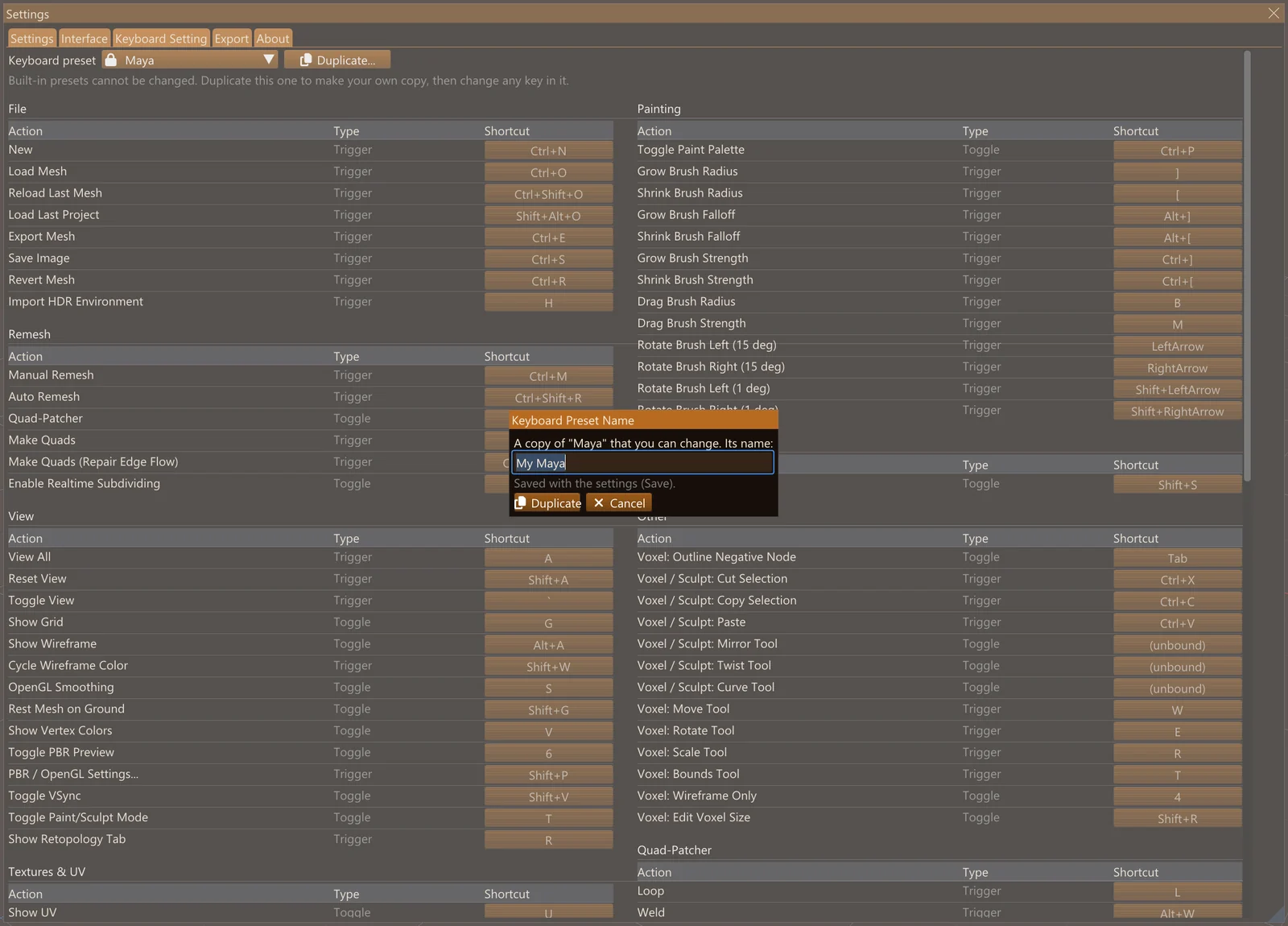
Built-in presets cannot be changed: their shortcut buttons are greyed out. To change a key, click Duplicate..., give the copy a name of your own, and change any key in it. This is the same arrangement Maya uses for its own hotkey sets. Your presets are listed under Your presets in the dropdown, with Rename... and Delete beside it. Deleting a preset puts its keys back to the built-in preset it was made from.
Your presets are saved with the rest of the settings when you click Save, in the file
keymaps.dat beside settings.cfg. Each one remembers the built-in preset it
came from and stores only the keys you changed, so a shortcut that a later version of Vertexix adds
arrives in your preset with that preset's key instead of none.
If you had changed keys before keyboard presets existed, they are kept as a preset of your own named My Shortcuts, based on Default, and it is the one in use.
What the Blender, Maya and 3ds Max presets change
Each of these starts from Default and changes only what has a counterpart in that application, plus any key that would do something to your model if pressed out of habit there (in Maya and 3ds Max, Q is the select tool and F frames the view, so Make Quads and Flip Normals move away from them). Save Selection and Load Selection have no key in these three, because C and Shift+C are everyday keys in all of them; both are still in the Edit menu.
| Action | Default | Blender | Maya | 3ds Max |
|---|---|---|---|---|
| View All | A | Home | A | Z |
| Reset View | — | Shift+C | Shift+A | Shift+Z |
| Show Wireframe | W | Shift+Z | Alt+A | F4 |
| Show Grid | G | Shift+Alt+Z | G | G |
| Toggle PBR Preview | P | Z | 6 | P |
| Enable Realtime Subdividing | Tab | Ctrl+1 | 3 | Ctrl+M |
| Hide Selected / Unselected Polygons | - / = | H / Shift+H | Ctrl+H / Alt+H | Alt+H / Alt+I |
| Unhide All Polygons | \ | Alt+H | Ctrl+Shift+H | Alt+U |
| Grow / Shrink Selection | Shift+] / [ | Ctrl+Num + / Num - | > / < | Ctrl+Page Up / Down |
| Select Connected | ] | Ctrl+L | ] | ] |
| Loop Select | L | L | L | Alt+L |
| Make Quads | Q | Alt+J | Shift+Alt+Q | Shift+Alt+Q |
| Flip Normals | F | Alt+N | Alt+N | Shift+Alt+N |
| Auto Remesh | Ctrl+A | Shift+Alt+R | Ctrl+Shift+R | Ctrl+Shift+R |
| Drag Brush Radius / Strength | D / Shift+D | F / Shift+F | B / M | D / Shift+D |
| Voxel: Move / Rotate / Scale Tool | T / Y / H | G / Y / S | W / E / R | W / E / R |
| Paint: Brush / Eraser (and the switch between them) | B / E (Space) | B / E (Space) | — / — (Space) | B / — (Space) |
Maya keeps B for the brush radius and E for Rotate, and 3ds Max keeps E for Rotate. Rotate also turns the Aligned Brush's target in the Paint tab, so in those presets the Paint Brush or Eraser has no key of its own. Space still switches between them.
The full list for any preset is in this tab: pick it from the dropdown. Some of these presets put an action on a number key or an F key (Maya's 3 and 6, 3ds Max's F4 and 8 for Import HDR Environment). That key then does the action instead of its usual job of opening a numbered sidebar section or recalling a selection slot.
Changing a shortcut
In a preset of your own, click a shortcut button and its label changes to "Press a key…", picking up any of Ctrl/Shift/Alt you're already holding. Press the key you want to bind, or Escape to cancel without changing anything. Right-click a shortcut to put back the key of the built-in preset yours is based on, or to remove the shortcut so the action has no key.
The Free edition can pick any built-in preset and view every shortcut. Making a preset of your own and changing its keys needs a higher edition.
Shortcuts in tooltips
Hover a button that has a shortcut, such as a toolbar icon, and its tooltip starts with that shortcut in amber. The tooltip shows your current binding, so a key you rebind here shows in the tooltips straight away. A brush slider that two shortcuts step up and down shows both, for example ] / [. Menu items show their shortcuts beside their names, as before.
Clash detection
If two unconditional actions end up bound to the same key combination, only the first one declared actually fires — the other is silently shadowed and simply does nothing when pressed. Vertexix flags this for you: a red banner counts how many shortcuts are currently dead, the shadowed entry's button text turns red with a tooltip naming what's stealing its key, and the winning entry turns amber with a tooltip naming what it's blocking. Contextual actions — like the Vertex Density Paint brush's radius/falloff/strength keys, which deliberately share keys with selection shortcuts and simply decline the press when no paint window is open — are excluded from this check, since sharing a key on purpose isn't a clash.