Merged Groups Management
Shown once at least one group exists. Each row lists the group's name, its summed polygon count, and a status badge (Pending / Passed Through / Remeshed / Mixed).
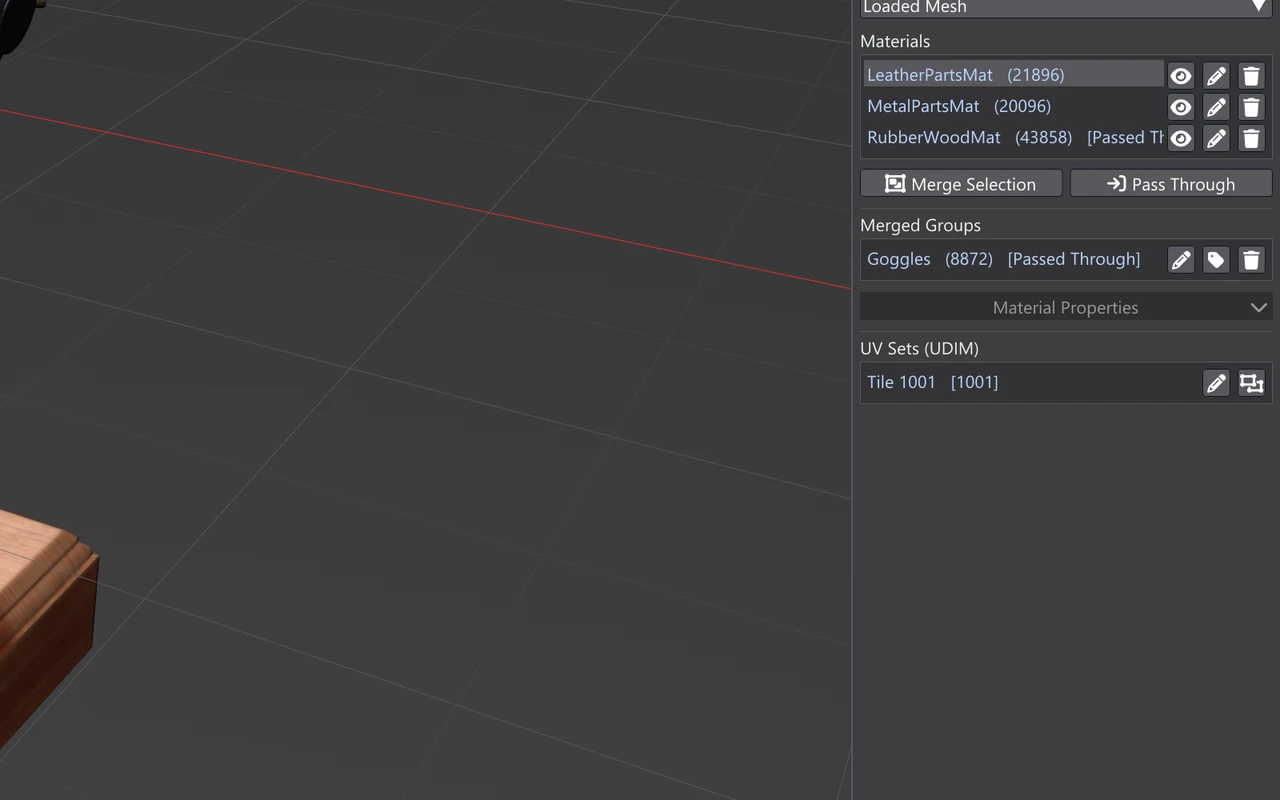
- Click a row — selects every material in the group at once. Clicking an already-selected group toggles it off, except on the second click of a deliberate double-click.
- Pencil icon — enters edit mode: loads the group's membership into the toggle selection so you can add or remove materials from it.
- Tag icon — opens the same name popup as Merge Selection, pre-filled with the current name, to rename the group.
- Trashcan icon — deletes the group; its materials become individually selectable again.
While a group is mid-edit, every other group's row is disabled — editing two groups' membership at once would make a mid-edit deletion shift indices out from under the other edit. Editing itself finishes with two buttons: Save Changes writes the current toggle selection back as the group's new membership; Cancel discards the edit.