Dynamic Topology
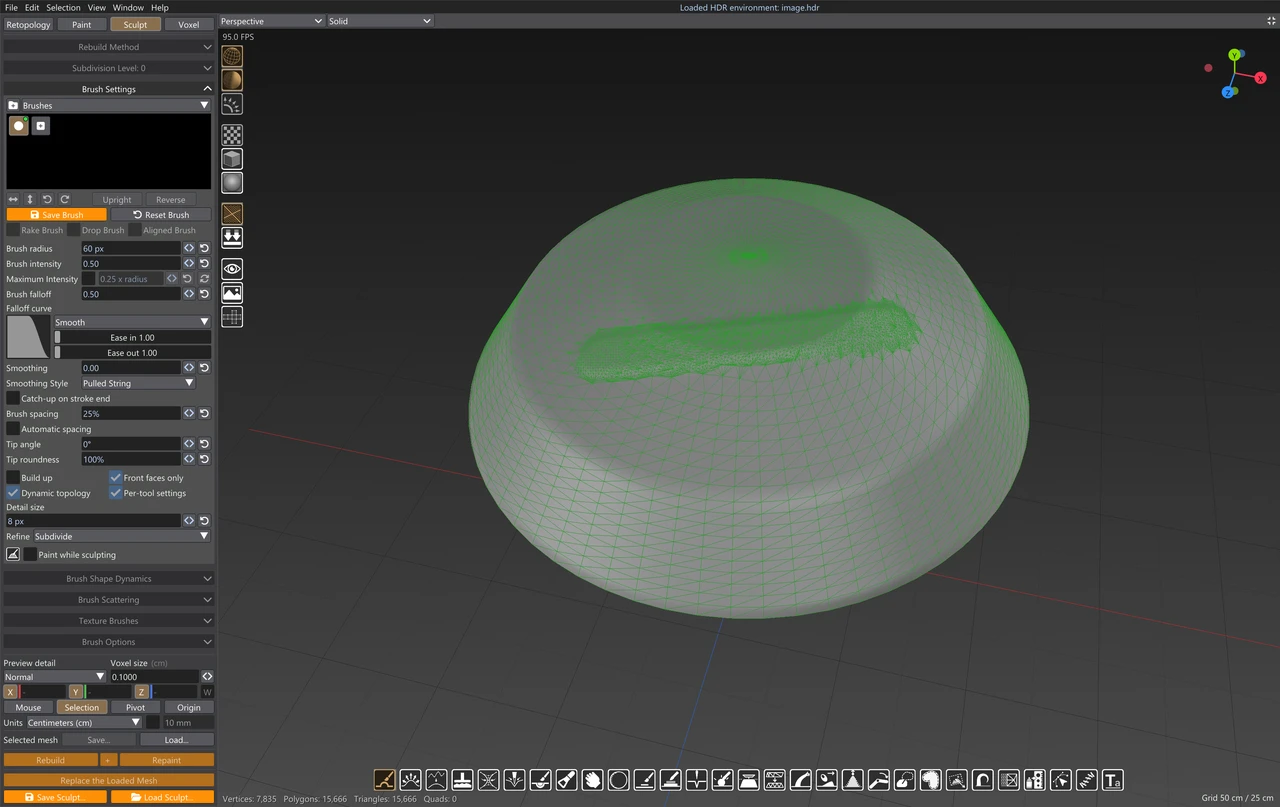
Normally a sculpt brush can only move the points a mesh already has, so it cannot add detail where there are no points to carry it. With dynamic topology, the brush also adds and removes points under itself as you sculpt. Turn it on with the Dynamic topology checkbox in the Brush Settings accordion of the Sculpt tab. It is off by default.
How detail is added and removed
While the brush moves, edges near it that are noticeably longer than the Detail size are split, adding points. What happens to edges that are already shorter is up to Refine: by default nothing, so a brush never takes away resolution the mesh had. A light smoothing step then evens out what changed.
| Control | What it does | Range | Default |
|---|---|---|---|
| Dynamic topology | Off: brushes move the mesh's existing points. On: brushes also add and remove points under them. UV seams and open borders are never changed. | — | Off |
| Detail size | How long the new edges are, in screen pixels. Smaller is finer. Appears only while Dynamic topology is on. | 2–40 px | 8 px |
| Refine | Subdivide: edges longer than the detail size are split, and nothing is ever merged. Subdivide and Collapse: edges shorter than the detail size are merged too, so the mesh under the brush ends up at the detail size even where it was finer. Collapse: short edges are merged only, to thin out a patch. Appears only while Dynamic topology is on. | — | Subdivide |
To take triangles away while keeping the shape — flat areas first, sharp edges last, with rules for borders, creases and masks — use the Decimate Brush instead of Collapse: Collapse evens the edges out to the detail size, wherever the surface is.
Because Detail size is measured on screen, zooming in gives finer detail with the same setting. Zoom out to block in big forms with coarse triangles, then zoom in for small details.
Which mesh and which brushes
Dynamic topology works on whichever mesh the viewport is showing — the Loaded Mesh or the Generated Mesh. It is off, with the reason shown under the checkbox, for:
- a rigged mesh, because its skin weights do not follow new points yet;
- a Generated Mesh with subdivision levels (apply or delete them first) or with a UV map, which new points cannot follow yet.
Some strokes never change the topology:
- Grab Brush, Rotate Brush, Elastic Grab and the Move Brush, which pick up a set of points and move them; Mask, which edits the mask rather than the surface; and Alpha Drag;
- sculpt strokes started from the Paint tab.
On the graphics card
Dynamic topology strokes run on the graphics card, as other sculpt strokes do, with exactly the same result the processor would give. They need a copy of the mesh on the card, which is made once, ahead of the first stroke, behind a short message: Making the GPU's copy of the mesh, once, before its first stroke. A few strokes still run on the processor — the same edits, only slower:
- the Layer Brush and Vector Displacement with dynamic topology on;
- a stroke that also paints (Paint While Sculpting);
- a stroke with an aligned pattern while Build up is off;
- a mesh with hidden faces;
- the refines that Text and stitch paths make under themselves.
Seams and open borders
An open border is never split, and its points are never collapsed. On a UV-mapped model that includes every UV seam, so seams keep their original resolution and textures cannot tear along them. Non-manifold edges are left alone too.
Textures, UVs and paint on new points
A new point takes its values from the points around it: vertex colours, UVs and the mask are blended from the edge it was split from, painted material channels are carried over, and a new face keeps the material of the face it came from.
On a textured model the sculpt palette adds a reminder under Detail size: This model has textures. New points take their UVs from their neighbours, so a texture may stretch where they are added.
With Paint While Sculpting on, a dynamic-topology stroke still paints, except for channels that have paint layers. Those are not painted yet — untick them, or turn Dynamic topology off.
Undo, layers and leaving Sculpt
- Ctrl+Z undoes a dynamic-topology stroke exactly: the points, faces and everything painted on them go back as they were.
- A dynamic-topology stroke always goes straight into the mesh, even with a sculpt layer selected, because a layer records per-vertex movement and these strokes add and remove vertices.
- Once a stroke has changed the topology, the wireframe shows the mesh's triangles as they are now. When you leave the Sculpt tab (or save a project), the mesh is tidied: polygons dynamic topology never touched stay as they were — a quad stays a quad — and the changed faces become triangles. On the Generated Mesh, a changed quad whose two triangles are still one quad stays a quad too.
- That tidy-up renumbers the Loaded Mesh's points, so its sculpt undo history is cleared at that moment.
- The vertex, polygon, triangle and quad counts at the bottom of the viewport follow every stroke as it changes the mesh.